> For the complete documentation index, see [llms.txt](https://help.besmart.software/older-26.0.0/llms.txt). Markdown versions of documentation pages are available by appending `.md` to page URLs; this page is available as [Markdown](https://help.besmart.software/older-26.0.0/commands-overview/helpdesk/start-teamviewer.md).
# Start TeamViewer
## Command Description
This command downloads and opens a third-party tool TeamViewer QuickSupport which can be used to receive technical support by allowing a remote connection of the technician to a local computer.
## Command Location
* All environments
## Command Settings
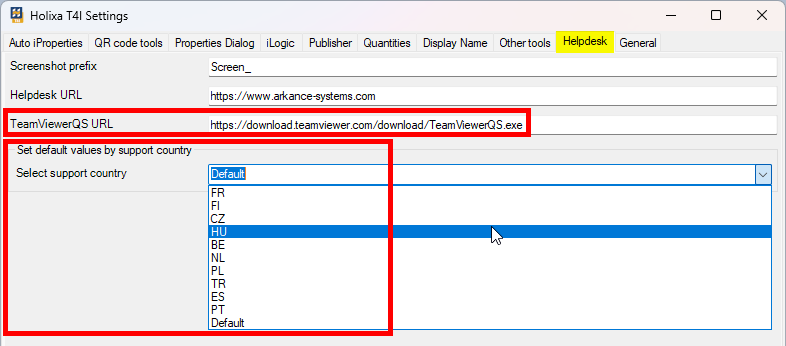
`Holixa T4I -> Holixa T4I -> Edit settings -> Helpdesk tab -> TeamViewerQS URL`
TeamViewerQS URL settings
TeamViewerQS URL can be changed to direct to a different location if needed. It can be done either manually by directly entering the required URL address, or one of the predefined URLs can be set automatically by selecting the support country from the dropdown list.
{% hint style="info" %}
See also the [Country of Support](https://help.besmart.software/older-26.0.0/commands-overview/helpdesk/pages/2NIzdGdH2fcmsCh1JoOq#2.-country-of-support) page.
{% endhint %}